Administration⚓︎
uMap uses the built-in Django administration site to manage data and local users, as well as some aspects of configuration such as tile layers.
To access the administration site, open the top-level URL for your
site followed by /admin, for instance if your site is
https://example.com/ then its administration site is
https://example.com/admin
Users and Groups⚓︎
Although by default, uMap is configured to only allow users to create accounts using OAuth2 (using their GitHub or OpenStreetMap accounts, for instance), it is also possible to create and manage local users.
This interface also allows you delete users or to grant elevated privileges to certain users, to allow them to access the admin interface for instance. In normal operation, this may not be particularly useful.
Tile Layers⚓︎
Most importantly, the administration site allows you to add new base maps (tile layers) and change the order in which they are presented in the interface.
IMPORTANT: Before adding any tile layers, make sure that you have permission to use them! See the OpenStreetMap Wiki for more information and a list of available layers. Each provider will have its own particular usage policy.
To add a new tile layer, navigate to /admin/umap/tilelayer/ on your
site, or click on the "Tile Layers" link under the "UMAP" section in
the sidebar. Then, click on "Add tile layer". Let's see how this
works by adding CyclOSM to your server:
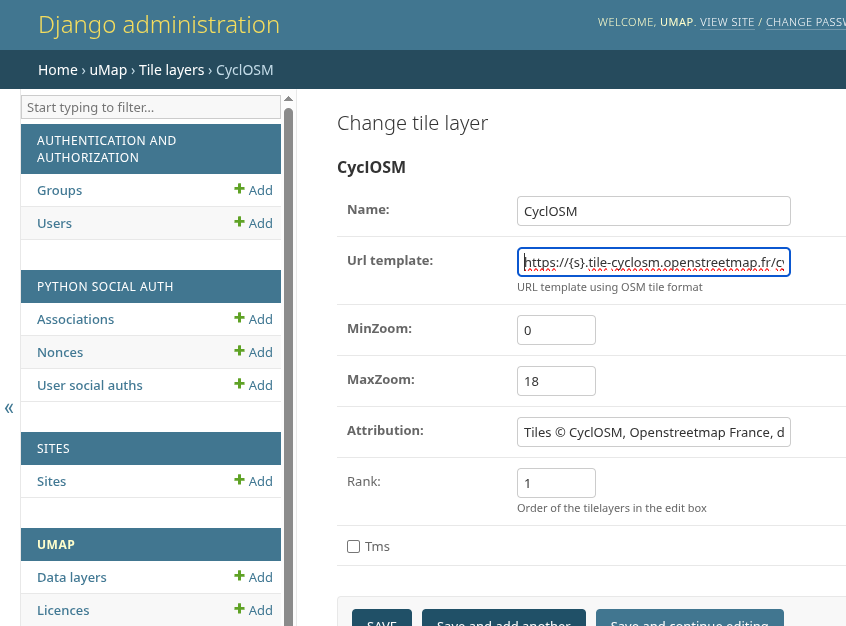
First, we need to add a name, then the URL template used to access individual tiles based on geographic position. The format for this template is described at the top of the OpenStreetMap "Raster tile providers" wiki page. (You may also encounter a slightly different format used in JOSM).
Now, importantly, you must also add an attribution text, which is displayed with the map describing its creator and copyright terms. You can often find a readymade text in the JOSM maps list, for instance, for CyclOSM.
If you wish to restrict the possible zoom levels (or if the provider does not provide certain zoom levels) you can also enter these here.
Click on "Save". You should now be able to see and use this tile layer in all of your maps!